Small tools. Useful every day.

See CPDock
in action.

Pick a feature. Watch a short demo. See how it fits into your day.

Native app views with sample content. The workflows are replayed; document and menu examples are illustrations. All demos work without sound.

01 / Clipboard tools14s

Find an earlier copy.
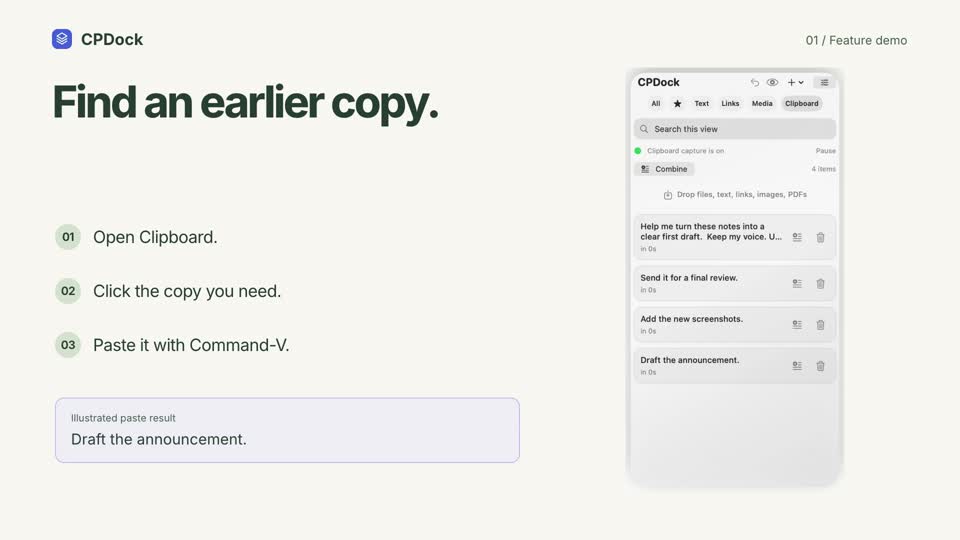
CPDock clipboard history demonstration with sample content

Your earlier copies, ready to reuse.

How it works
  1. Open Clipboard.
  2. Click the copy you need.
  3. Paste it with Command-V.
Link to this feature
02 / Saved text14s

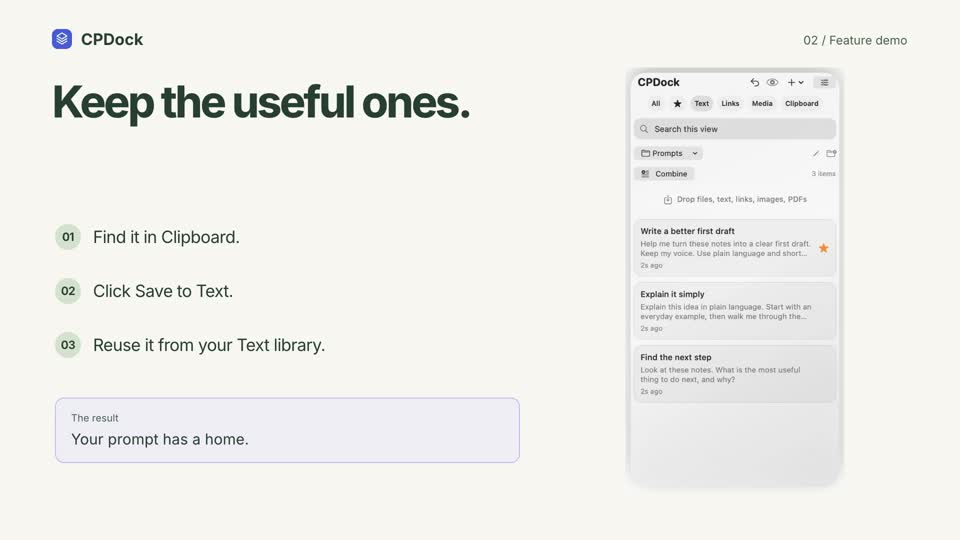
Keep the useful ones.

CPDock save to text demonstration with sample content

Saved Text stays independent of rolling history.
How it works
  1. Find it in Clipboard.
  2. Click Save to Text.
  3. Reuse it from your Text library.
Link to this feature
03 / Saved text14s

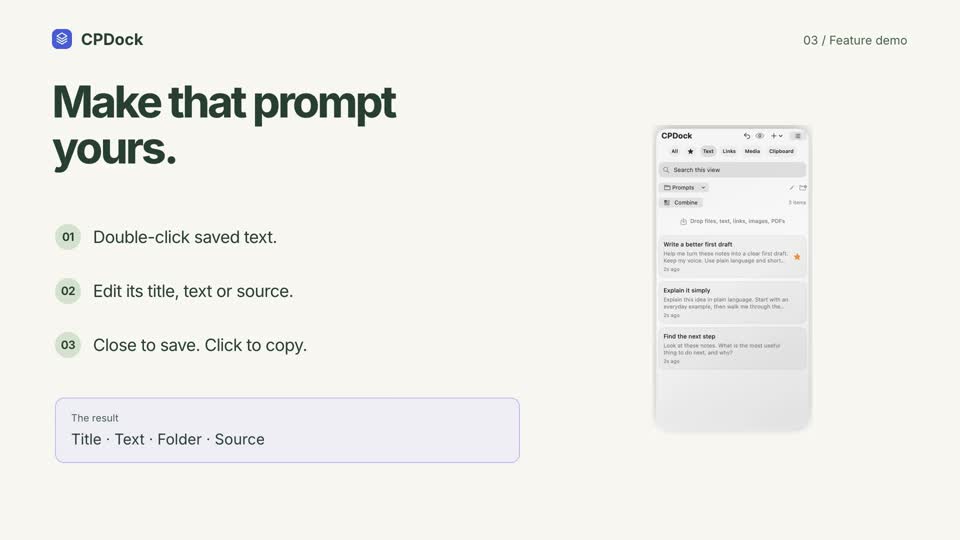
Make that prompt yours.

CPDock text editor demonstration with sample content

One click copies. A double-click opens the editor.
How it works
  1. Double-click saved text.
  2. Edit its title, text or source.
  3. Close to save. Click to copy.
Link to this feature
04 / Saved text14s

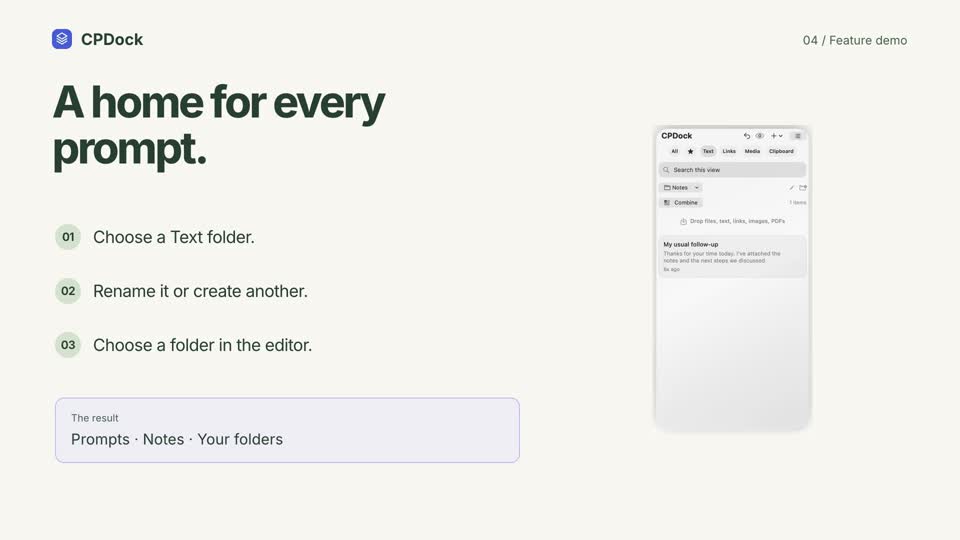
A home for every prompt.

CPDock text folders demonstration with sample content

Start with Prompts and Notes. Make them your own.
How it works
  1. Choose a Text folder.
  2. Rename it or create another.
  3. Choose a folder in the editor.
Link to this feature
05 / Clipboard tools20s

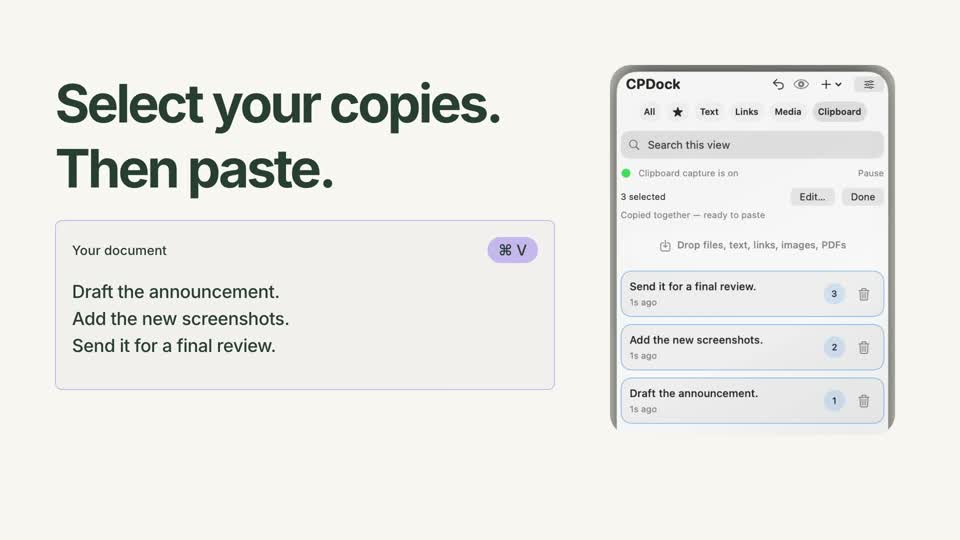
Separate copies. One paste.

CPDock combine demonstration with sample content

Copied together automatically as you select.
How it works
  1. Turn on Combine.
  2. Select entries in your order.
  3. Switch apps and paste together.
Link to this feature
06 / Clipboard tools14s

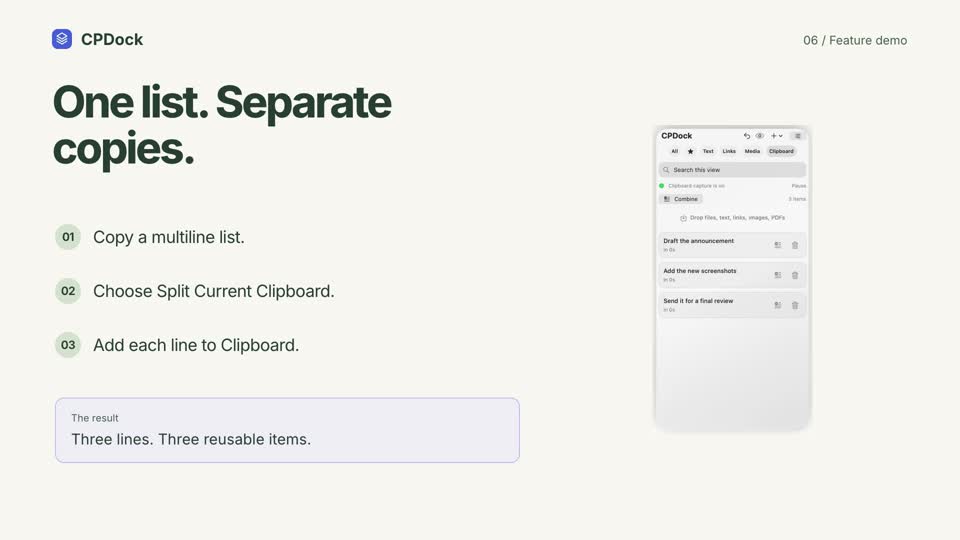
One list. Separate copies.

CPDock split demonstration with sample content

Blank lines are skipped. Your original entry is kept.
How it works
  1. Copy a multiline list.
  2. Choose Split Current Clipboard.
  3. Add each line to Clipboard.
Link to this feature
07 / Images & files14s

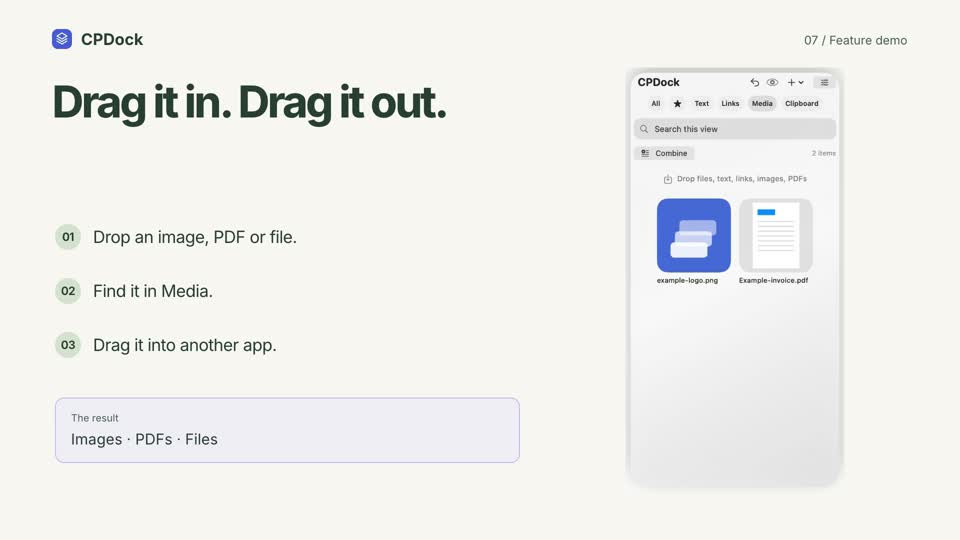
Drag it in. Drag it out.

CPDock media shelf demonstration with sample content

Small previews. Original quality. Keep Finder originals available.
How it works
  1. Drop an image, PDF or file.
  2. Find it in Media.
  3. Drag it into another app.
Link to this feature
08 / Images & files14s

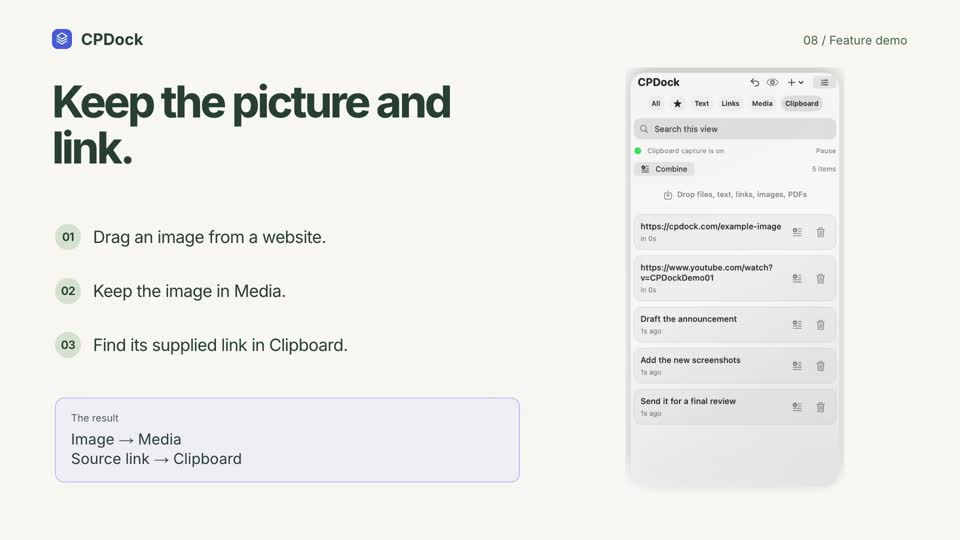
Keep the picture and link.

CPDock website images demonstration with sample content

Works when the browser provides usable image data and a link.
How it works
  1. Drag an image from a website.
  2. Keep the image in Media.
  3. Find its supplied link in Clipboard.
Link to this feature
09 / Images & files14s

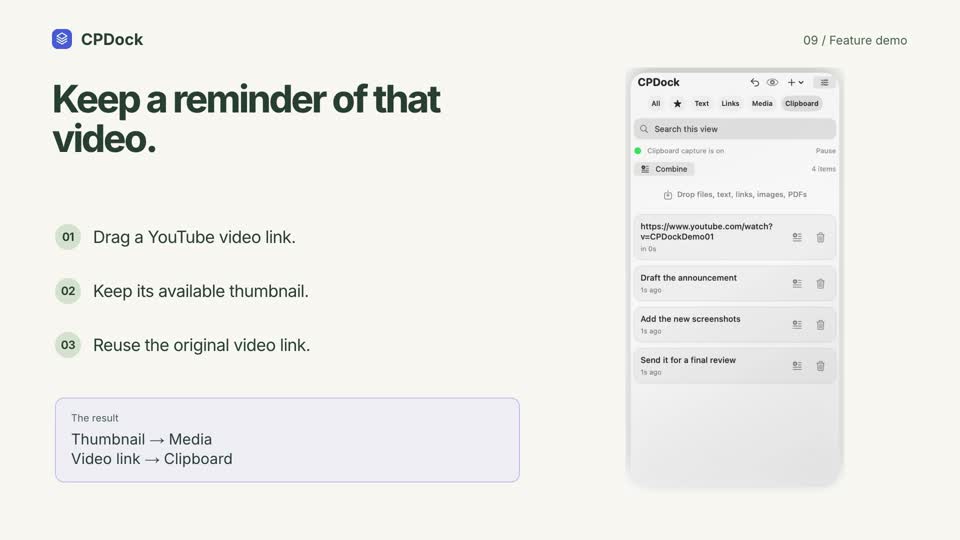
Keep a reminder of that video.

CPDock youtube thumbnail demonstration with sample content

Saves an available thumbnail and link, not the video.
How it works
  1. Drag a YouTube video link.
  2. Keep its available thumbnail.
  3. Reuse the original video link.
Link to this feature
10 / Your preferences14s

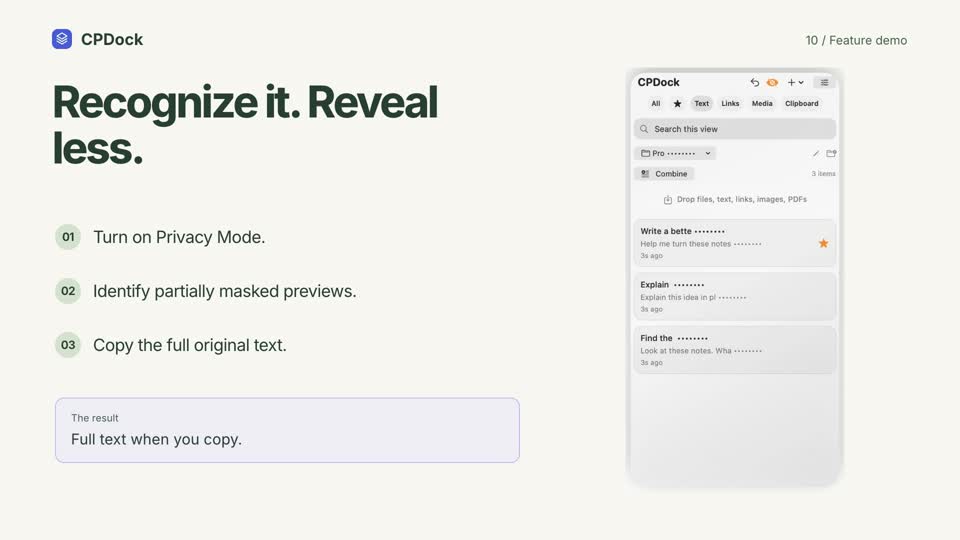
Recognize it. Reveal less.

CPDock privacy mode demonstration with sample content

Preview masking, not encryption.

How it works
  1. Turn on Privacy Mode.
  2. Identify partially masked previews.
  3. Copy the full original text.
Link to this feature
11 / Clipboard tools14s

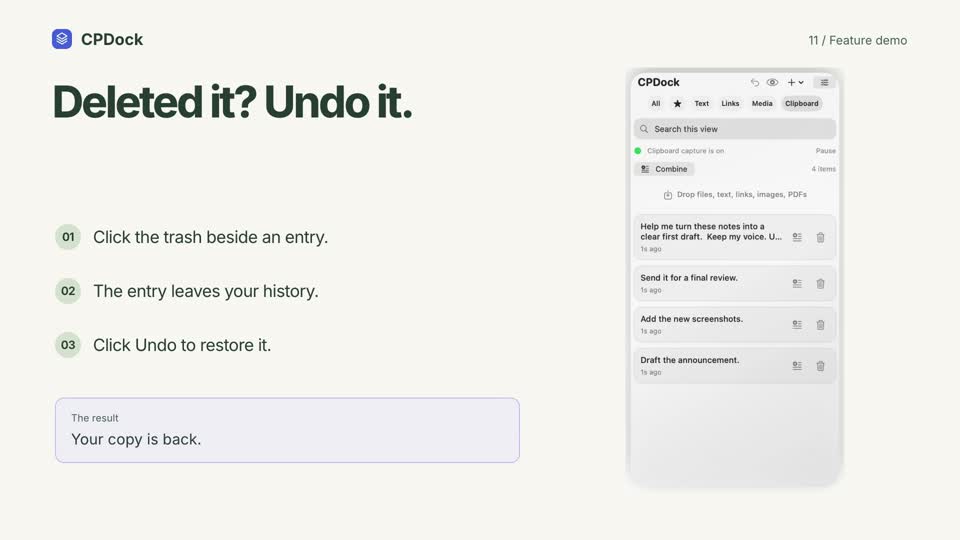
Deleted it? Undo it.

CPDock delete undo demonstration with sample content

Recent deletions only: up to ten, for five minutes this session.
How it works
  1. Click the trash beside an entry.
  2. The entry leaves your history.
  3. Click Undo to restore it.
Link to this feature
12 / Clipboard tools14s

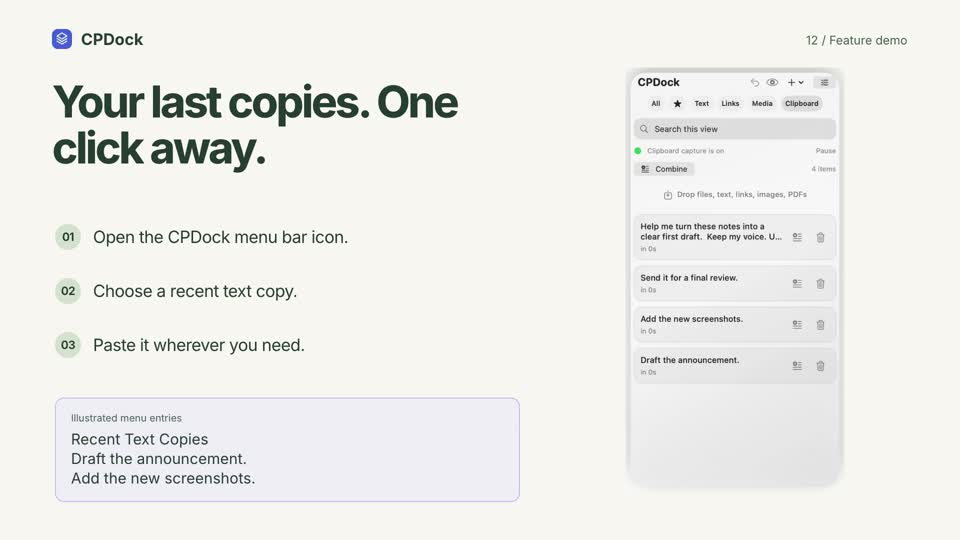
Your last copies. One click away.

CPDock recent menu demonstration with sample content

Shows the ten newest text copies, including URLs.
How it works
  1. Open the CPDock menu bar icon.
  2. Choose a recent text copy.
  3. Paste it wherever you need.
Link to this feature
14 / Saved text14s

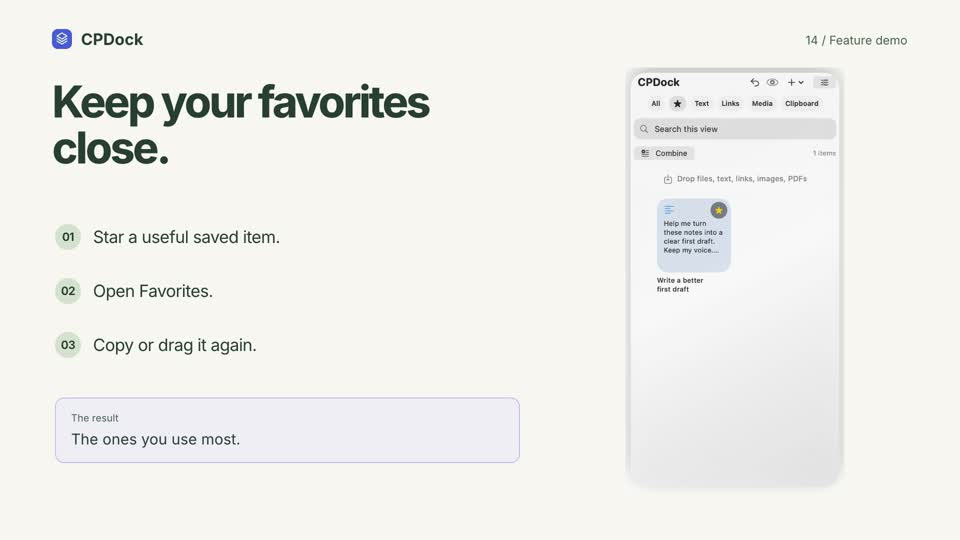
Keep your favorites close.

CPDock favorites demonstration with sample content

Your starred saved items, together.

How it works
  1. Star a useful saved item.
  2. Open Favorites.
  3. Copy or drag it again.
Link to this feature
15 / Your preferences14s

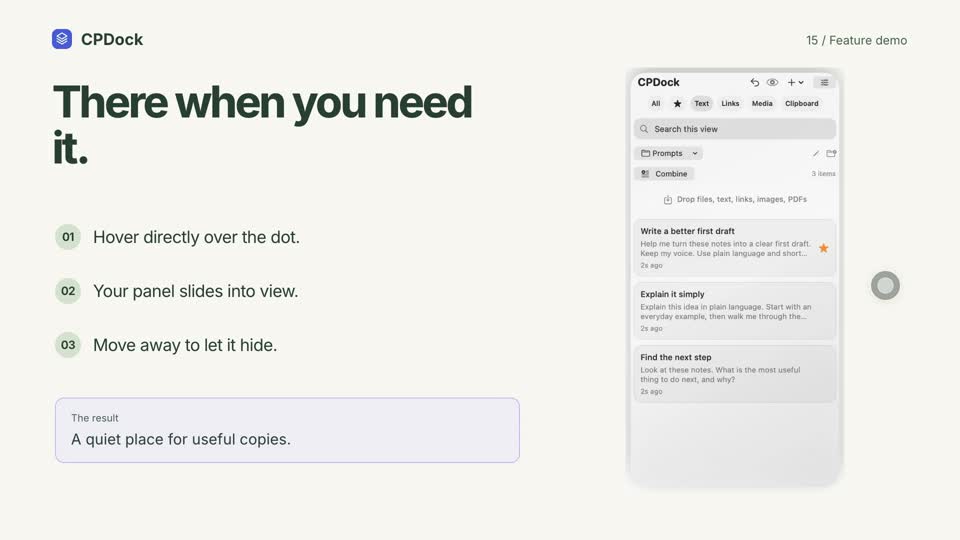
There when you need it.

CPDock hover panel demonstration with sample content

The visible circle is the hover area. Auto-hide is optional.
How it works
  1. Hover directly over the dot.
  2. Your panel slides into view.
  3. Move away to let it hide.
Link to this feature
16 / Your preferences14s

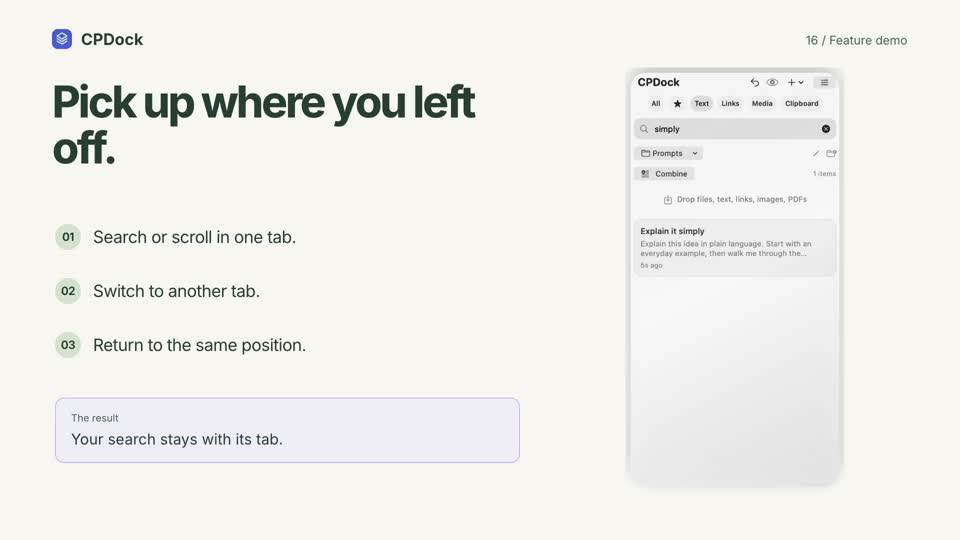
Pick up where you left off.

CPDock tab memory demonstration with sample content

Each tab remembers its search and scroll position.
How it works
  1. Search or scroll in one tab.
  2. Switch to another tab.
  3. Return to the same position.
Link to this feature
17 / Your preferences14s

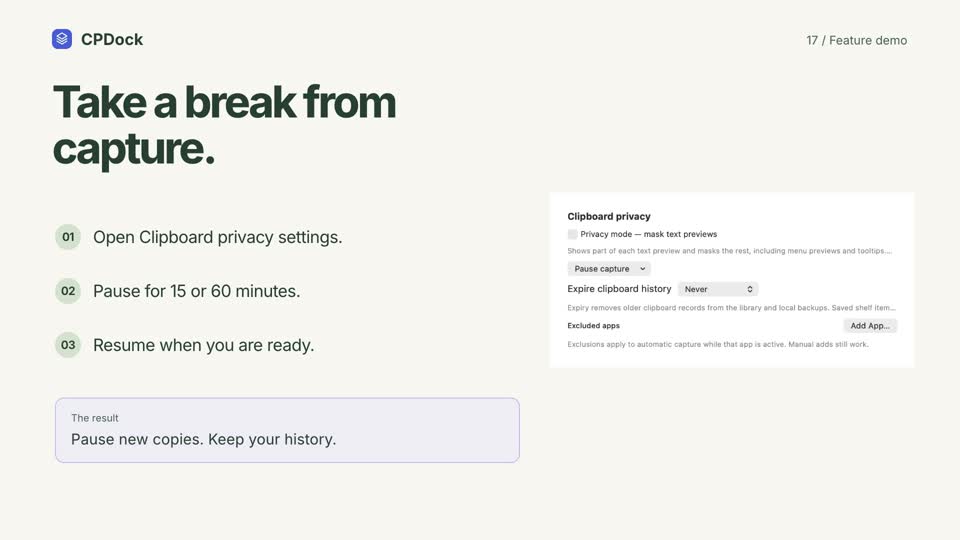
Take a break from capture.

CPDock pause capture demonstration with sample content

Existing history remains while automatic capture is paused.
How it works
  1. Open Clipboard privacy settings.
  2. Pause for 15 or 60 minutes.
  3. Resume when you are ready.
Link to this feature
18 / Your preferences14s

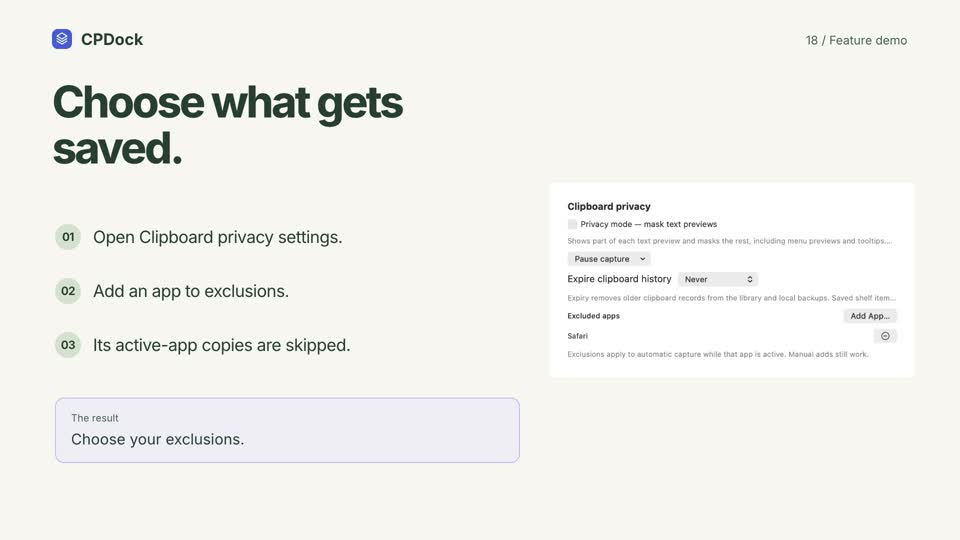
Choose what gets saved.

CPDock exclude apps demonstration with sample content

Exclusions affect automatic capture. Manual adds still work.
How it works
  1. Open Clipboard privacy settings.
  2. Add an app to exclusions.
  3. Its active-app copies are skipped.
Link to this feature
19 / Your preferences14s

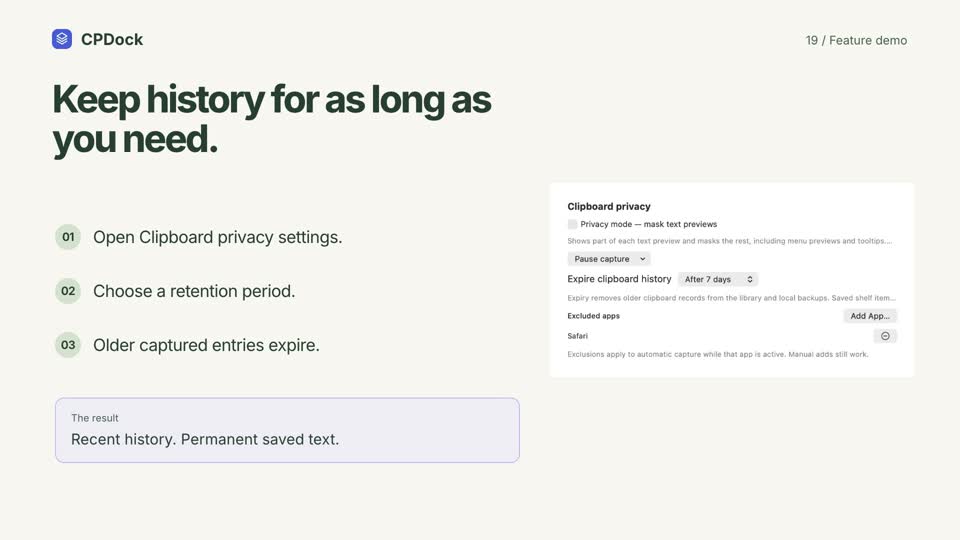
Keep history for as long as you need.

CPDock history expiry demonstration with sample content

Saved Text remains independent. Choose 1, 7, 30 days or Never.
How it works
  1. Open Clipboard privacy settings.
  2. Choose a retention period.
  3. Older captured entries expire.
Link to this feature
20 / Your preferences14s

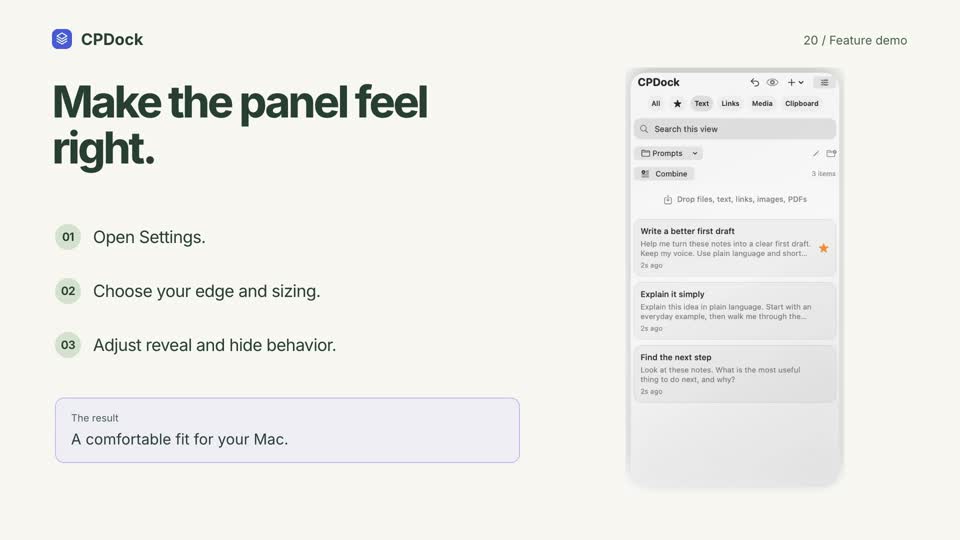
Make the panel feel right.

CPDock panel settings demonstration with sample content

Choose left or right, dot placement, visual scale and auto-hide.

How it works
  1. Open Settings.
  2. Choose your edge and sizing.
  3. Adjust reveal and hide behavior.
Link to this feature

A little help.
Every time you copy.

See CPDock Pro Read the full user guide