Go back to
an earlier copy.
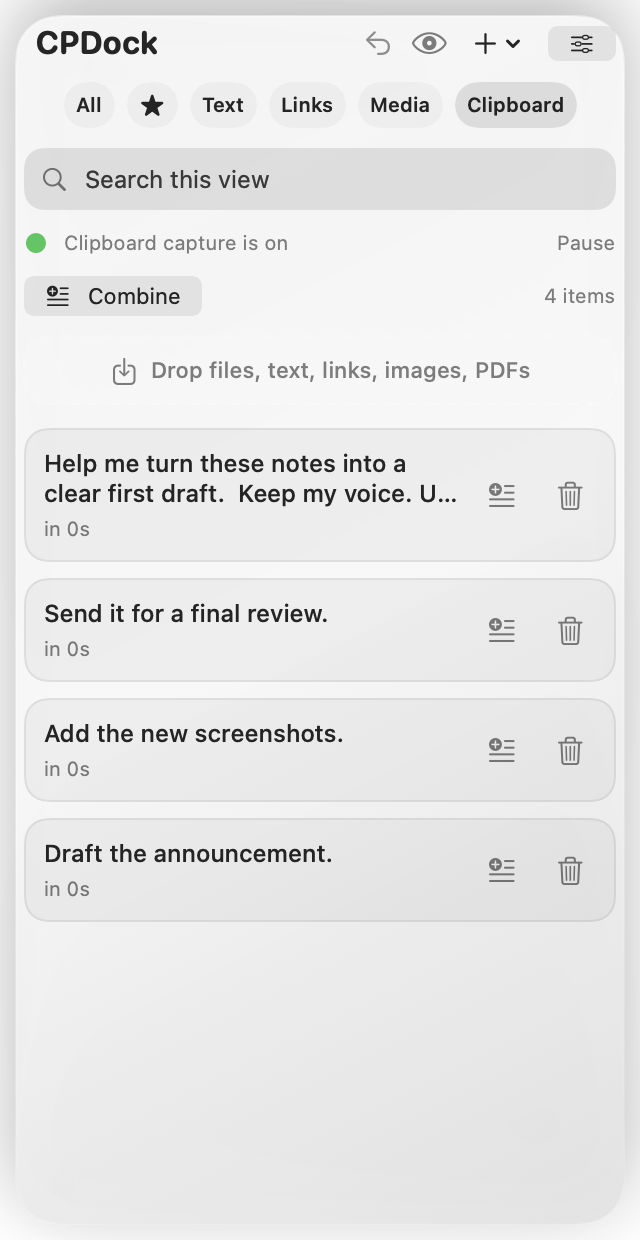
Find recent text and links in your clipboard history. Copy any item again with a click.
 CPDock
A little help for your Mac
Find what you copied. Save the text you use again. Keep useful images close. All in one small panel on your Mac.
See how CPDock worksAt the edge of your screen. Out of your way.
Less looking. More doing.
CPDock keeps recent copies handy and gives your useful text a place to stay.
Find recent text and links in your clipboard history. Copy any item again with a click.
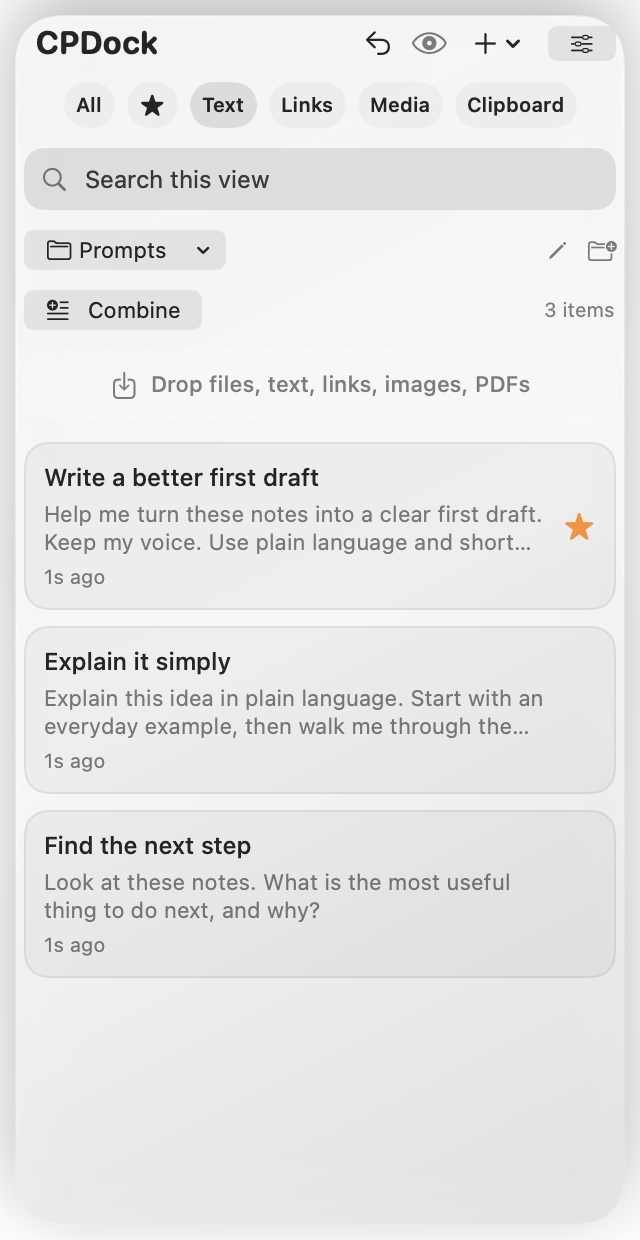
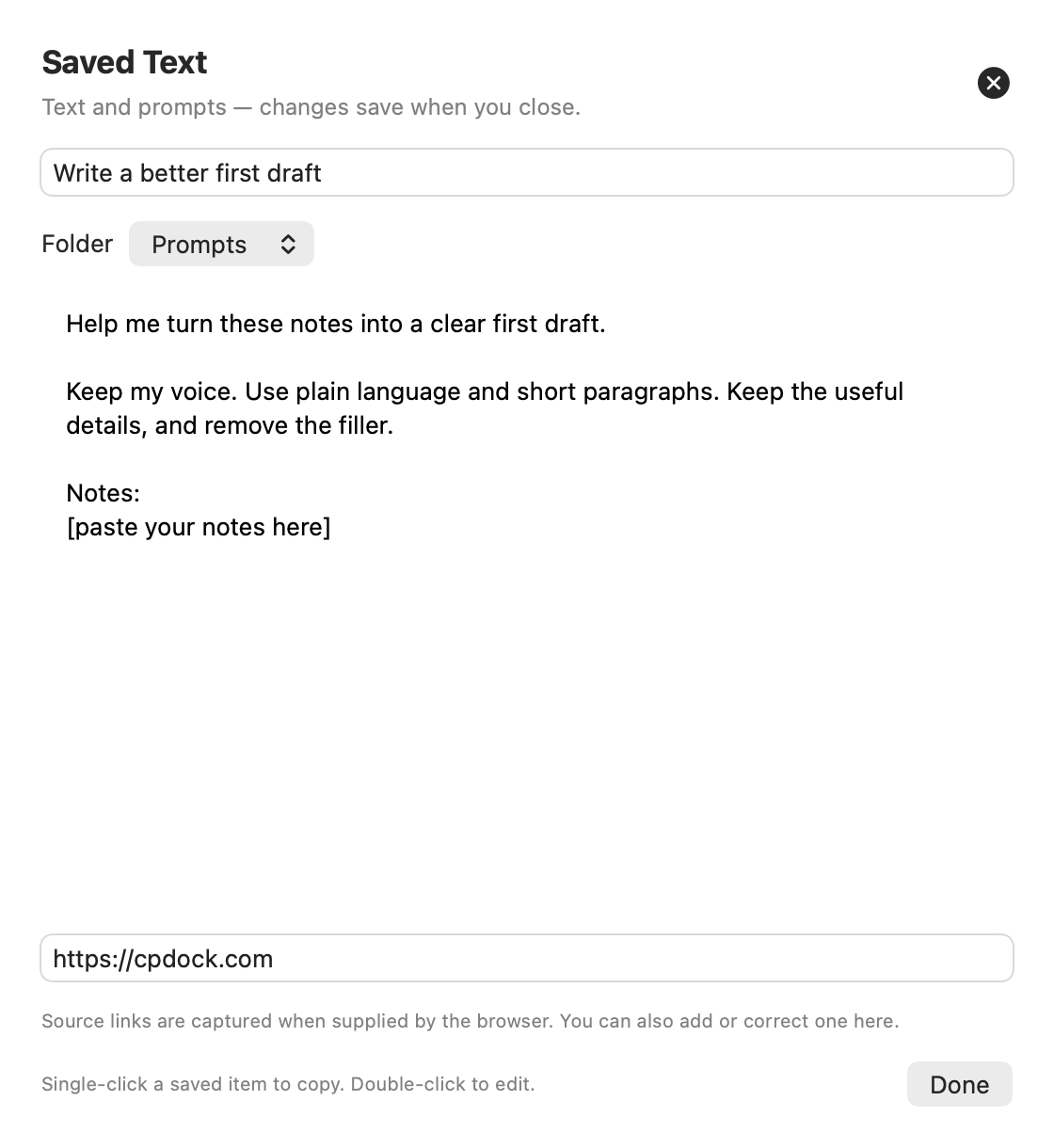
Save prompts, notes and replies in Text. Add a title and choose a folder. Click to copy; double-click to edit.
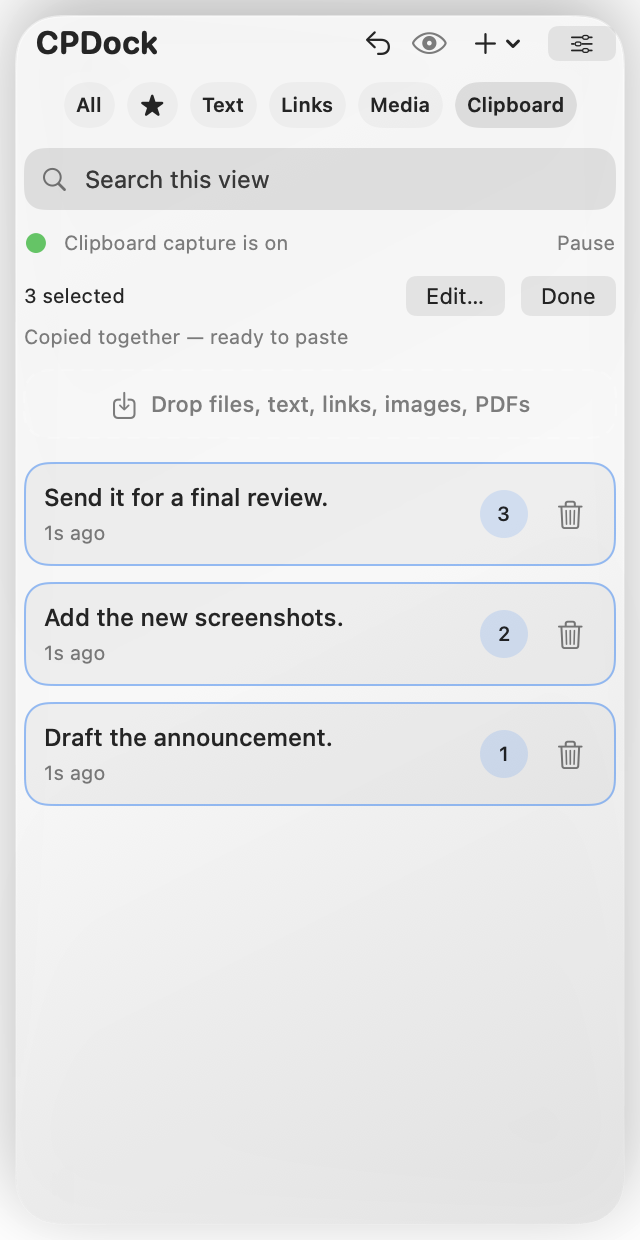
Select several copies to paste them together. Split a list into individual clipboard items when you need each line separately.
Here’s the actual app
Hover over the little dot to bring CPDock in. Pick what you need, then get back to what you were doing.
Your recent copies, with options to save useful text or delete what you don’t need.
Real CPDock views with sample content.
Two small jobs, made easier
You decide how the text comes out. Combine several copies for one paste, or split a list so each line is its own Clipboard item.
Turn on Combine and select the text you need. It’s copied together as you select. Switch to your document and paste.
No extra confirmation window.
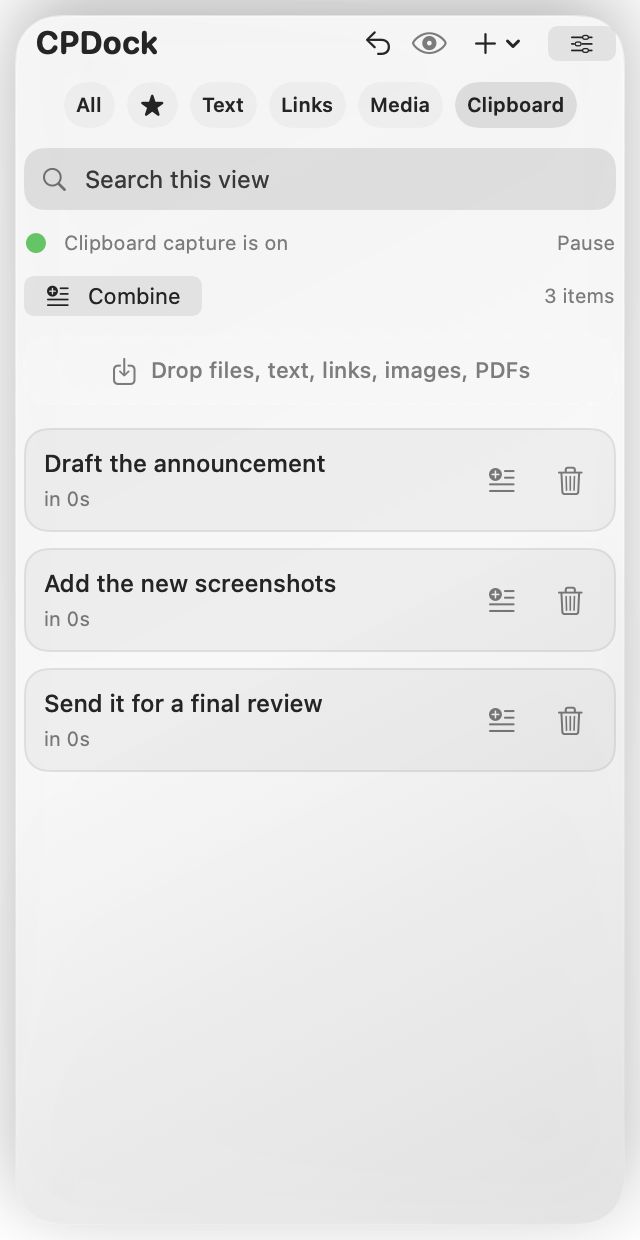
Split nonempty lines into separate Clipboard items. Keep each useful line ready to copy on its own.
Remove bullet or number prefixes if you want.
Native sample views demonstrate the steps. The paste destination is illustrated.
For the text you use again
Your favorite prompt. A useful reply. Notes you don’t want to lose. Move them from Clipboard into Text so they stay easy to find.
Find a long prompt by a name you recognize.
Start with Prompts and Notes. Rename them or add your own.
Click to copy. Double-click to open the larger editor and change the text.
Keep the context
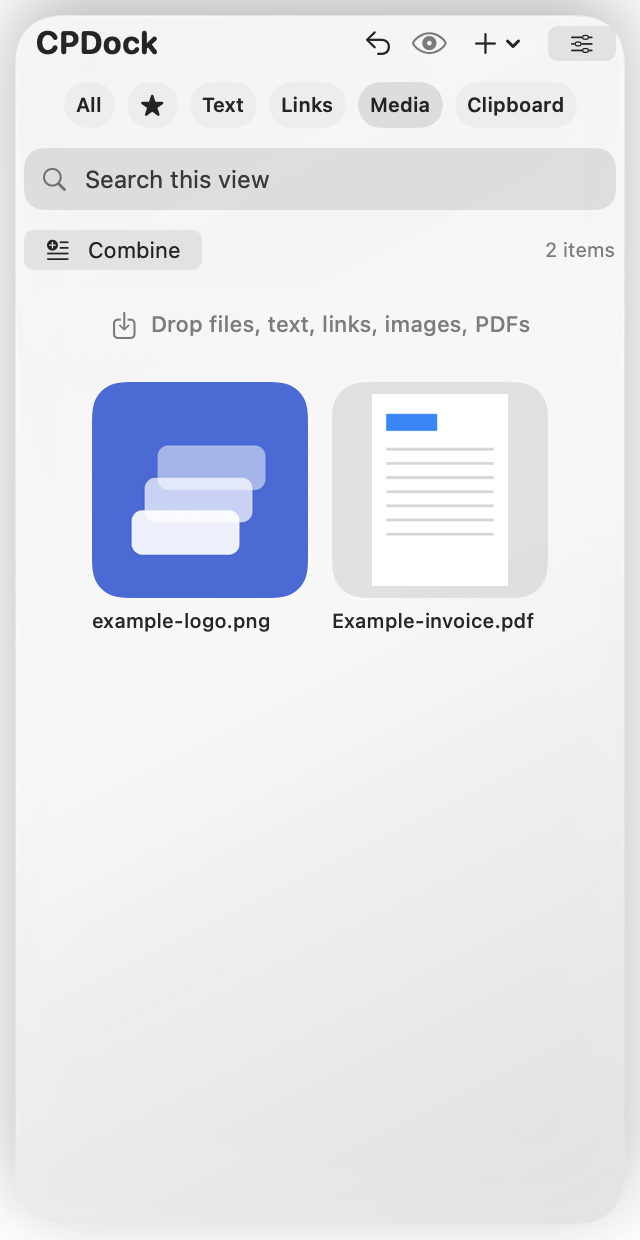
Drag a supported web image into CPDock to keep the image in Media and its link in Clipboard.
YouTube links can bring along an available thumbnail, too. Keep the picture and return to the video when you want.
When an image or thumbnail isn’t available, the link still stays useful.
You’re in control
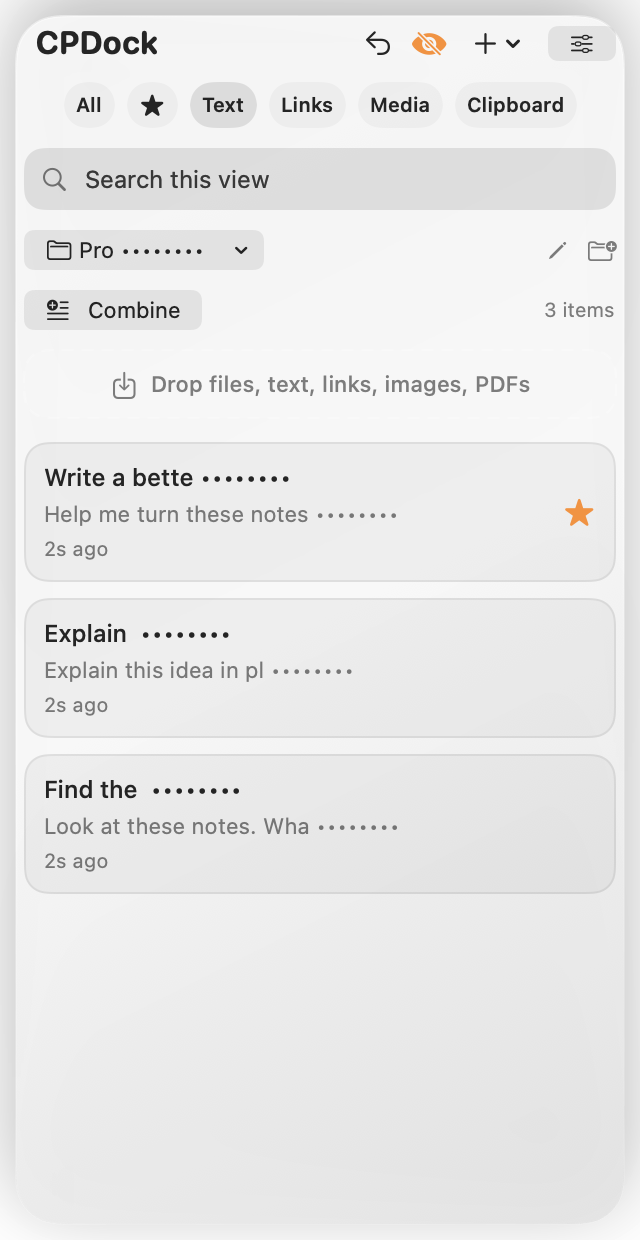
Privacy Mode hides part of text previews, so you can still recognize an item. Copying uses the full original text.
Pause clipboard capture when you want. Exclude selected apps from capture in Settings.
Delete an item you don’t need. Use Undo to bring a recent deletion back.
Privacy Mode masks previews; it does not encrypt them. Your library is stored on your Mac.
A small tool. A one-time price.
The clipboard tools you use every day. CPDock Pro is $9.99 once for one Mac.
One-time purchase · 1 Mac
Finishing signing and release testing before opening purchases.
Release checksum available at launchA few things you might be wondering
Clipboard holds recent copies. Text is for prompts, replies and notes you choose to save, with a title, folder and optional source link.
Hover over the dot at the edge of your screen, or choose Show CPDock from its menu bar icon. Move away to let the panel hide when auto-hide is enabled.
Yes. Save a useful clipboard entry to Text, add a title and folder, and edit it whenever you like. One click copies the full text. A double-click opens the editor.
Yes. Pause capture, exclude apps, set a history expiry period or clear your history. Privacy mode masks part of the previews on screen. Your saved content stays locally on your Mac.
Yes, when your browser provides a downloadable image. CPDock can keep the image in Media and the supplied link in Clipboard. YouTube video links can also bring in an available thumbnail. Some websites restrict downloads or don’t provide an image when dragged; in those cases, CPDock keeps the link when one is supplied. It doesn’t find an image for every webpage link.
The latest preview is built for both Apple Silicon and Intel, with macOS 13 or later. We’re completing release testing, including Intel hardware checks, before the public download opens.
Updates are currently manual: quit CPDock, download the newer official version, replace the app in Applications and reopen it. Keep your local library. See what’s new and the update instructions. There is no automatic updater in the current preview.
No. CPDock Pro is $9.99 USD once for one Mac. Activation and periodic license renewal require an internet connection; a verified license supports up to seven days offline. Final purchase terms will be published before sales open.
No. There is no cloud sync or product analytics. Browser image and YouTube thumbnail imports contact their source servers. License activation and payment use online services; your clipboard content is not sent to the license service.
More details in the user guide and release notes.
Useful things, close at hand